> For the complete documentation index, see [llms.txt](https://help.pagefly.io/llms.txt). Markdown versions of documentation pages are available by appending `.md` to page URLs; this page is available as [Markdown](https://help.pagefly.io/pages-and-sections-creation/sections/how-to-create-ai-section-in-pagefly-ai-sales-page.md).
# How to create AI section in PageFly AI Smart Page
### Overview
In this article, you will learn how to create AI-powered sections using PageFly's AI Section Generator. The AI Section Generator includes a Prompt Builder tool to help you create better, more structured prompts for conversion-optimized sections.
{% hint style="success" %}
**Note**: Currently, AI sections are exclusively available for [AI Smart Pages](https://help.pagefly.io/pages-and-sections-creation/pages/how-to-create-ai-sales-pages-with-pagefly) and CANNOT be saved or reused as [PageFly global sections](https://help.pagefly.io/pages-and-sections-creation/sections/saved-section). They are designed to enhance your AI Smart Page content with intelligent, context-aware sections.
{% endhint %}
### What Is An AI Section In PageFly?
AI Sections are dynamically generated page sections powered by artificial intelligence, currently available exclusively within AI Smart Pages. Instead of manually designing each element, you can describe what you need, and the AI will generate professionally designed sections complete with content, layout, and styling. The built-in Prompt Builder helps you structure your prompts for even better results.
#### Key Benefits
* **Save Time**: Generate complete sections in seconds instead of building them manually
* **Professional Design**: AI creates conversion-optimized layouts based on best practices
* **Prompt Builder**: Structure your prompts using templates, purposes, layouts, and elements for better results
* **AI-Powered Editing**: Refine sections conversationally - the AI automatically creates settings parameters so you can control spacing, padding, colors, and more without code
* **Personalization Ready**: Sections automatically adapt to different customer segments based on your AI Smart Page personalization settings
#### Requirements
To get started with this guide, ensure you have the following:
* **PageFly Installed**: Make sure you have the PageFly app installed on your Shopify store
* **AI Smart Page Created**: You need an active AI Smart Page to add AI sections. Learn how to create one [here](https://help.pagefly.io/pages-and-sections-creation/pages/how-to-create-ai-sales-pages-with-pagefly)
* **Product Selected**: Have at least one product configured in your AI Smart Page campaign
### How To Create AI Sections Using The AI Section Generator
#### Step 1: Open The AI Section Generator
In the AI Smart Page editor, click the **"Add section"** button at the Page content panel
{% hint style="warning" %}
Note: You must assign at least one product to your AI Smart Page to enable the AI section button.
{% endhint %}
The AI Section Generator drawer will open with two ways to describe your section:
* A text field for typing descriptions directly
* A **"Build prompt"** button for structured prompt creation
#### Step 2: Describe What You Want
The quality of your AI-generated section depends heavily on how well you describe what you need. The more details you provide about purpose, layout, and elements, the better the result. Taking time to think through your requirements will save you editing time later and produce more professional results on the first try.
You have two options to tell the AI what section you need:
**Option 1: Type Your Description Directly**
If you know exactly what you want, simply type in the text field.
> **Examples:** Create a product showcase section for our premium wireless headphones on our online store's sales page. This section should highlight our flagship model "SoundWave Pro X" which costs $299 and competes with brands like Sony and Bose. The target audience is audiophiles and professionals aged 25-45 who value both sound quality and design, and they're typically comparing multiple brands before making a purchase."
>
>
Then skip to **Step 3**.
**Option 2: Use The Prompt Builder**
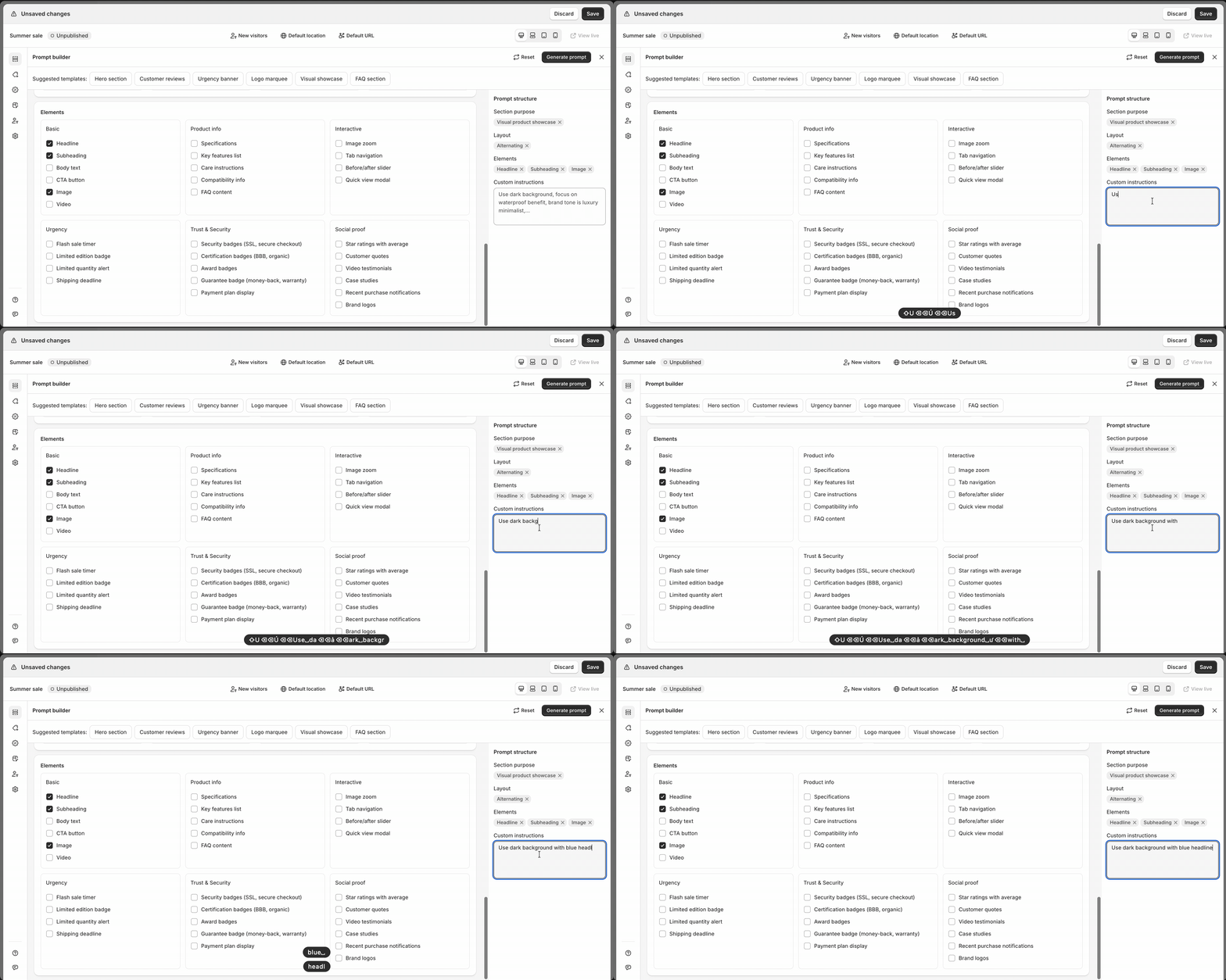
For more control and better results, click the **"Build prompt"** button. The Prompt Builder helps you structure your prompt with guided selections.
**1. Templates (Quick Start)**
Browse suggested templates like Product showcase, Testimonials, Features, etc. When you select a template, it automatically fills in the purpose, layout, and elements for you.
**2. Purpose, Layout & Elements**
If you don't want a template, you can also manually select:
* **Purpose**: What the section should achieve (showcase features, display testimonials, etc.)
* **Layout**: Visual arrangement (grid, columns, full-width, etc.)
* **Elements**: Components to include (images, videos, buttons, testimonials, etc.)
**3. Custom Requirements**
Add specific details about brand colors, messaging, styling needs, or any special requirements in the text field.
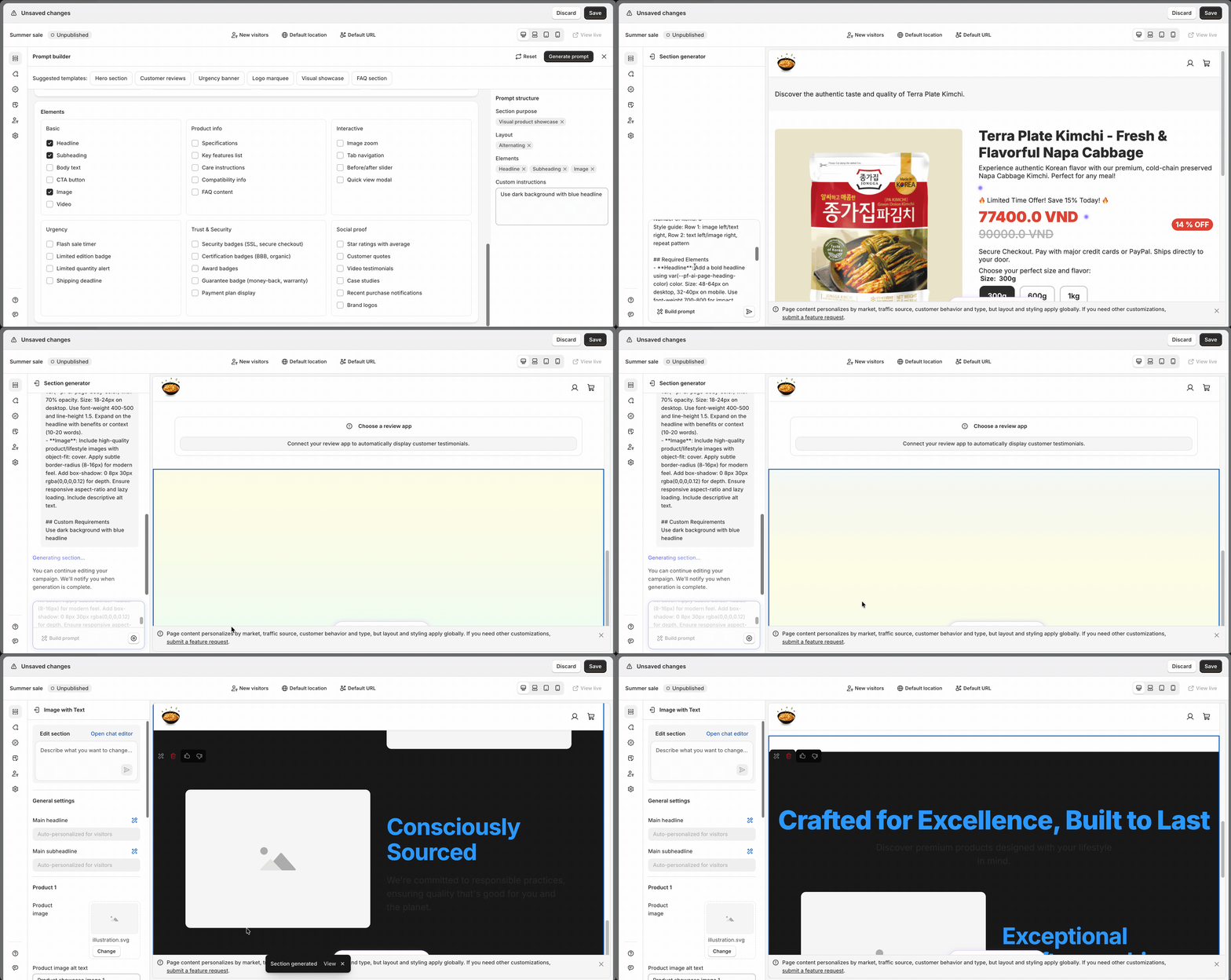
#### Step 3: Generate Your Section
Click the **"Generate"** button. The AI will:
1. Process your prompt
2. Create a professionally designed section
3. Add it to your page automatically
**Loading time**: Usually 10-30 seconds depending on complexity.
#### Step 4: Review And Save
Once generated:
1. Review the section on your page, check that it matches your expectations
2. Click **"Save"** to keep your changes
### Editing AI Sections
Once an AI section is created, you have two distinct ways to customize it.
#### Method 1: Edit Using Settings Parameters
After the AI generates a section, it automatically creates settings parameters that let you control the section without code.
**Step 1**: Click on the AI-generated section in your page.
**Step 2**: The section settings panel opens on the left side, showing all available parameters for that section.
**Step 3**: Adjust the parameters directly: Change text content, update images, ddjust colors and spacing,...
**Step 4**: Click **"Save"** to apply changes.
{% hint style="info" %}
**When to use this method:**
* You want precise, manual control over specific settings
* You're comfortable adjusting parameters directly
* You need to make quick, minor adjustments
* You know exactly which setting to change
{% endhint %}
{% hint style="warning" %}
Tip: The AI section inherits some styling from your Styling menu settings. If the appearance isn't quite right, adjust those global settings to achieve your desired look - just like we did in this demo.
{% endhint %}
#### Method 2: Edit With AI Using Chat Editor
The chat editor lets you request changes conversationally. The AI will not only make the changes but also create new settings parameters when needed, giving you control without code.
**Step 1**: In the section settings panel, click **"Open chat editor"** or type your request in the chat field at the bottom and press Enter.
**Step 2**: The full chat panel opens, showing:
* Your conversation history (last 30 days)
* All previous versions of the section
* A text field for new requests
**Step 3**: Type your editing request using natural language. E.g.**:** "Make the headline larger and bold" - AI will adjust and create a font size parameter. "I need to control the padding" - AI creates a padding parameter you can adjust.
**Step 4**: Press **Enter** or click **"Submit"**. The AI processes your request and:
1. Updates the section
2. Creates new settings parameters if needed
3. Saves it as a new version
You can control the newly added parameters directly in the settings panel.
{% hint style="info" %}
**When to use this method:**
* You want to describe changes in plain language
* You need the AI to create new control parameters
* You're making complex or multiple changes at once
* You want to iterate and experiment quickly
* You want to avoid hallucinations by having the AI create parameters you can control later.
Thiis approach gives you the best of customization capacity: AI's intelligence to create what you need, and manual controls to fine-tune without code.
{% endhint %}
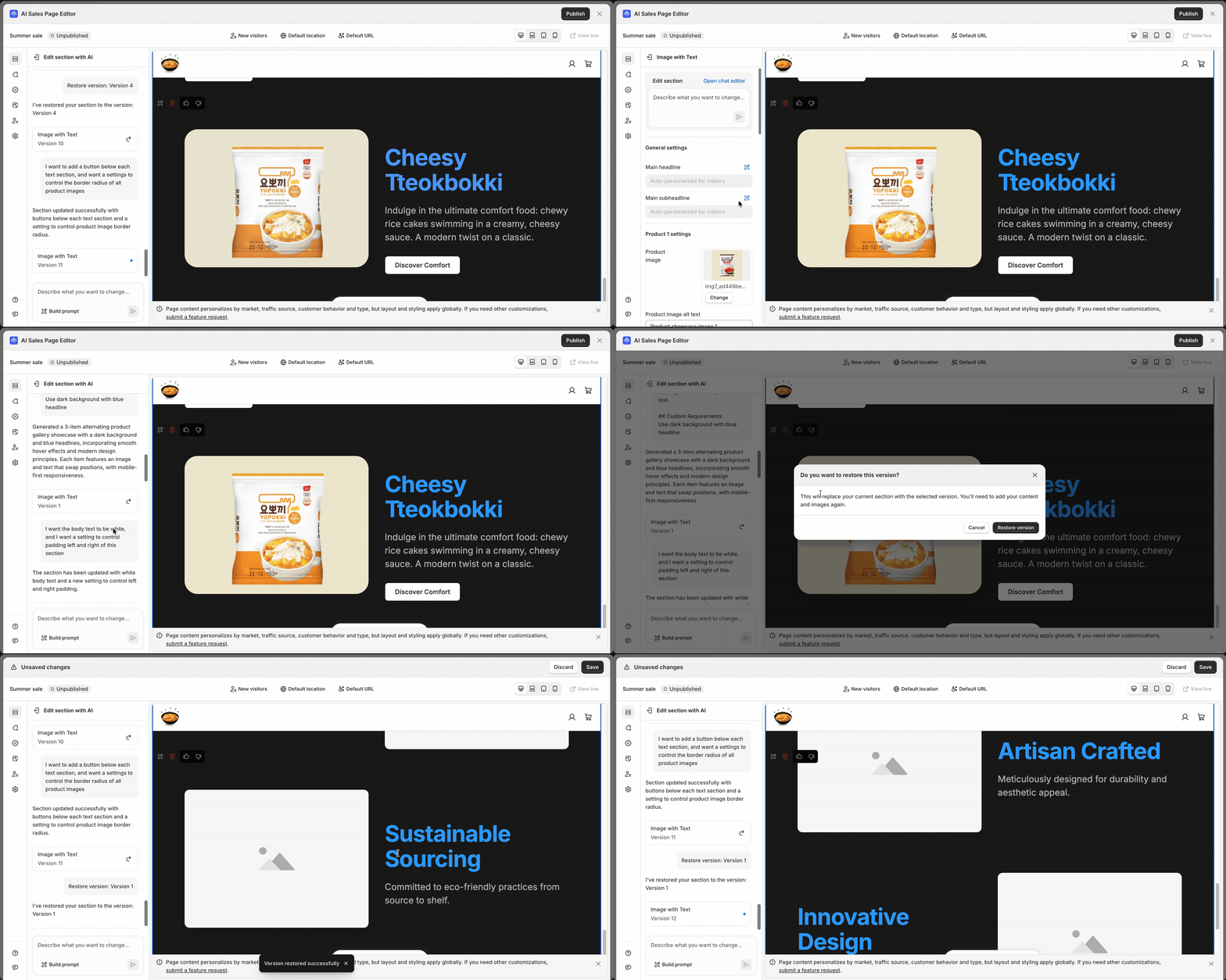
#### Version History & Restoration
Every chat edit creates a new version automatically saved for 30 days. Each version shows a timestamp and new parameters are marked with a blue indicator.
**To restore a previous version:**
1. In the chat editor, click any version from the history sidebar
2. Confirm the restoration
3. The section returns to that version
You can restore any version within 30 days. After 30 days, older versions are no longer accessible.
{% hint style="success" %}
**Provide Feedback**: Rate generated sections with like/dislike buttons and explain what could be improved. Your feedback helps train the AI to generate better sections.
{% endhint %}
### Best Practices
#### Creating Better Prompts
* **Start with templates**: Browse template categories first - they're professionally designed starting points
* **Be specific**: Instead of "make it nice," specify colors, messaging, and key features
* **Use Prompt Builder**: It helps you consider all options (purpose, layout, elements) for better results
#### Editing Effectively
* **Iterate with chat editor**: Generate a base, then refine step by step
* **Request parameters**: Ask AI to create controls (spacing, padding, colors) to reduce hallucinations and gain manual control
#### Optimization
* **Configure AI Smart Page first**: Set up personalization (traffic sources, customer types) so sections adapt automatically
* **Test mobile view**: Check responsive behavior before finalizing
### FAQs
#### 1. Can I edit an AI-generated section by drag & drop like a normal PageFly section?
No, AI sections are different. You edit them by:
1. Adjusting settings parameters the AI creates automatically
2. Using the chat editor to request changes conversationally
The chat editor is unique to AI sections and creates new parameters as needed.
#### 2. Can I use AI sections on regular PageFly pages?
No, AI sections are currently exclusive to AI Smart Pages and cannot be saved as global sections. They're designed to work with AI Smart Page personalization features.
#### 3. How long is version history saved?
Version history and chat messages are saved for 30 days.
#### 4. How can I avoid AI hallucinations when editing?
Ask the AI to create parameters for settings you want to control: "Add padding controls" or "Create a color parameter." This gives you manual control instead of letting the AI make changes automatically.
#### 5. Can AI sections be personalized automatically?
Yes! AI sections automatically adapt based on the personalization settings in your AI Smart Page (traffic source, location, customer type). Learn more about [configuring AI Smart Pages](https://help.pagefly.io/pages-and-sections-creation/pages/how-to-create-ai-sales-pages-with-pagefly).
#### 6. What happens when I rate sections with like/dislike?
Your feedback goes directly to the PageFly product team and helps train the AI to generate better sections.
#### 7. How many AI sections can I add to one page?
Shopify has a 256KB limit per page. While there's no fixed number, you should limit the number of sections to ensure optimal page performance and stay within Shopify's size restrictions.
### Troubleshooting
#### Generation Issues
**Problem**: Generation takes too long or times out.
**Solutions:**
* Simplify your prompt - try fewer elements
* Check your internet speed
* Try again during off-peak hours
* Refresh and retry
* Contact support if it persists
#### Result Quality Issues
**Problem 1**: Generated section doesn't match what I asked for.
**Solutions:**
* Review your prompt - was it specific enough?
* Use the Prompt Builder for more structured input
* Try including examples in the Custom Requirements field
* Use the chat editor to refine with more specific requests
* Start with a template closest to what you want, then customize
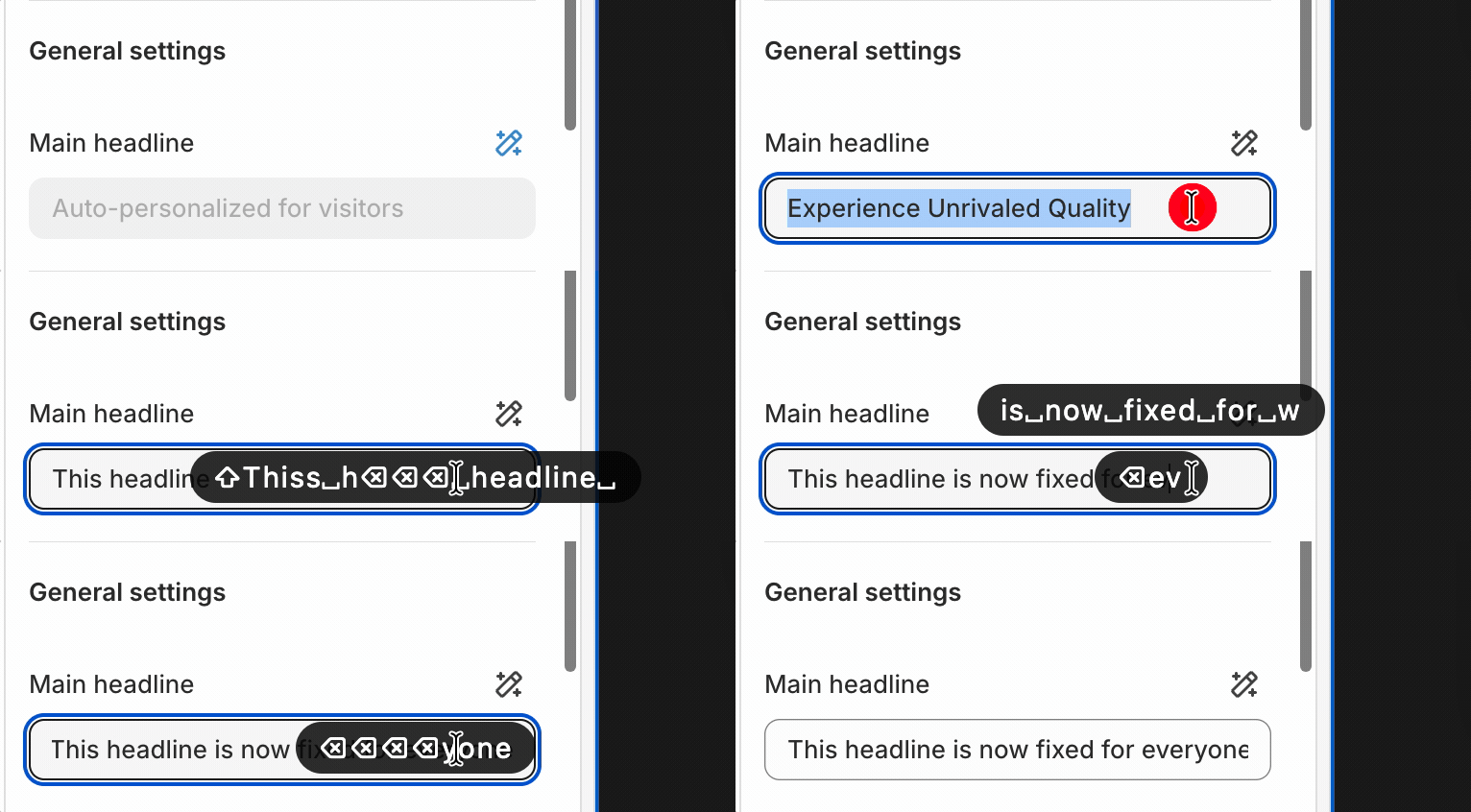
**Problem 2**: Section looks good but text content keeps changing when I reload.
**Solution:**\
AI sections automatically enable personalized content for text elements (headers, paragraphs), which means the text is dynamic and changes based on the visitor. To make text fixed:
1. Click on the AI section
2. Open the Settings panel
3. Find the text element settings
4. Turn off the "Enable personalization" toggle
5. Enter your fixed text
6. The text will now display as-is for all customers
#### Editing Issues
**Problem**: Chat editor doesn't understand my requests.
**Solutions:**
* Be more specific - instead of "make it better," try "increase the headline size to 48px"
* Break complex requests into smaller steps
* Use clear action words: change, add, remove, update, move, resize
* Reference specific elements: "the blue button," "the main headline"
* Try rephrasing in simpler terms
### Need Help?
If you encounter issues or have questions not covered in this guide:
**Live Support:** Click the live chat button in the PageFly editor
**Feedback:** Use the feedback button in the editor to suggest improvements, or submit [this form](https://forms.gle/KXP9GMyoEtDhRKG69).
---
# Agent Instructions
This documentation is published with GitBook. GitBook is the documentation platform designed so that both humans and AI agents can read, navigate, and reason over technical content effectively. Learn more at gitbook.com.
## Querying This Documentation
If you need additional information that is not directly available in this page, you can query the documentation dynamically by asking a question.
Perform an HTTP GET request on the current page URL with the `ask` query parameter, and the optional `goal` query parameter:
```
GET https://help.pagefly.io/pages-and-sections-creation/sections/how-to-create-ai-section-in-pagefly-ai-sales-page.md?ask=&goal=
```
`ask` is the immediate question: it should be specific, self-contained, and written in natural language.
`goal` is optional and describes the broader end goal you are ultimately trying to accomplish on behalf of the user. GitBook uses it to tailor the answer towards what is most useful for that goal.
The response will contain a direct answer to the question and relevant excerpts and sources from the documentation.
Use this mechanism when the answer is not explicitly present in the current page, you need clarification or additional context, or you want to retrieve related documentation sections.


 Then skip to **Step 3**.
**Option 2: Use The Prompt Builder**
For more control and better results, click the **"Build prompt"** button. The Prompt Builder helps you structure your prompt with guided selections.
**1. Templates (Quick Start)**
Browse suggested templates like Product showcase, Testimonials, Features, etc. When you select a template, it automatically fills in the purpose, layout, and elements for you.
Then skip to **Step 3**.
**Option 2: Use The Prompt Builder**
For more control and better results, click the **"Build prompt"** button. The Prompt Builder helps you structure your prompt with guided selections.
**1. Templates (Quick Start)**
Browse suggested templates like Product showcase, Testimonials, Features, etc. When you select a template, it automatically fills in the purpose, layout, and elements for you.




 {% endhint %}
### Best Practices
#### Creating Better Prompts
* **Start with templates**: Browse template categories first - they're professionally designed starting points
* **Be specific**: Instead of "make it nice," specify colors, messaging, and key features
* **Use Prompt Builder**: It helps you consider all options (purpose, layout, elements) for better results
#### Editing Effectively
* **Iterate with chat editor**: Generate a base, then refine step by step
* **Request parameters**: Ask AI to create controls (spacing, padding, colors) to reduce hallucinations and gain manual control
#### Optimization
* **Configure AI Smart Page first**: Set up personalization (traffic sources, customer types) so sections adapt automatically
* **Test mobile view**: Check responsive behavior before finalizing
### FAQs
#### 1. Can I edit an AI-generated section by drag & drop like a normal PageFly section?
No, AI sections are different. You edit them by:
1. Adjusting settings parameters the AI creates automatically
2. Using the chat editor to request changes conversationally
The chat editor is unique to AI sections and creates new parameters as needed.
#### 2. Can I use AI sections on regular PageFly pages?
No, AI sections are currently exclusive to AI Smart Pages and cannot be saved as global sections. They're designed to work with AI Smart Page personalization features.
#### 3. How long is version history saved?
Version history and chat messages are saved for 30 days.
#### 4. How can I avoid AI hallucinations when editing?
Ask the AI to create parameters for settings you want to control: "Add padding controls" or "Create a color parameter." This gives you manual control instead of letting the AI make changes automatically.
#### 5. Can AI sections be personalized automatically?
Yes! AI sections automatically adapt based on the personalization settings in your AI Smart Page (traffic source, location, customer type). Learn more about [configuring AI Smart Pages](https://help.pagefly.io/pages-and-sections-creation/pages/how-to-create-ai-sales-pages-with-pagefly).
#### 6. What happens when I rate sections with like/dislike?
Your feedback goes directly to the PageFly product team and helps train the AI to generate better sections.
#### 7. How many AI sections can I add to one page?
Shopify has a 256KB limit per page. While there's no fixed number, you should limit the number of sections to ensure optimal page performance and stay within Shopify's size restrictions.
### Troubleshooting
#### Generation Issues
**Problem**: Generation takes too long or times out.
**Solutions:**
* Simplify your prompt - try fewer elements
* Check your internet speed
* Try again during off-peak hours
* Refresh and retry
* Contact support if it persists
#### Result Quality Issues
**Problem 1**: Generated section doesn't match what I asked for.
**Solutions:**
* Review your prompt - was it specific enough?
* Use the Prompt Builder for more structured input
* Try including examples in the Custom Requirements field
* Use the chat editor to refine with more specific requests
* Start with a template closest to what you want, then customize
**Problem 2**: Section looks good but text content keeps changing when I reload.
**Solution:**\
AI sections automatically enable personalized content for text elements (headers, paragraphs), which means the text is dynamic and changes based on the visitor. To make text fixed:
1. Click on the AI section
2. Open the Settings panel
3. Find the text element settings
4. Turn off the "Enable personalization" toggle
5. Enter your fixed text
6. The text will now display as-is for all customers
{% endhint %}
### Best Practices
#### Creating Better Prompts
* **Start with templates**: Browse template categories first - they're professionally designed starting points
* **Be specific**: Instead of "make it nice," specify colors, messaging, and key features
* **Use Prompt Builder**: It helps you consider all options (purpose, layout, elements) for better results
#### Editing Effectively
* **Iterate with chat editor**: Generate a base, then refine step by step
* **Request parameters**: Ask AI to create controls (spacing, padding, colors) to reduce hallucinations and gain manual control
#### Optimization
* **Configure AI Smart Page first**: Set up personalization (traffic sources, customer types) so sections adapt automatically
* **Test mobile view**: Check responsive behavior before finalizing
### FAQs
#### 1. Can I edit an AI-generated section by drag & drop like a normal PageFly section?
No, AI sections are different. You edit them by:
1. Adjusting settings parameters the AI creates automatically
2. Using the chat editor to request changes conversationally
The chat editor is unique to AI sections and creates new parameters as needed.
#### 2. Can I use AI sections on regular PageFly pages?
No, AI sections are currently exclusive to AI Smart Pages and cannot be saved as global sections. They're designed to work with AI Smart Page personalization features.
#### 3. How long is version history saved?
Version history and chat messages are saved for 30 days.
#### 4. How can I avoid AI hallucinations when editing?
Ask the AI to create parameters for settings you want to control: "Add padding controls" or "Create a color parameter." This gives you manual control instead of letting the AI make changes automatically.
#### 5. Can AI sections be personalized automatically?
Yes! AI sections automatically adapt based on the personalization settings in your AI Smart Page (traffic source, location, customer type). Learn more about [configuring AI Smart Pages](https://help.pagefly.io/pages-and-sections-creation/pages/how-to-create-ai-sales-pages-with-pagefly).
#### 6. What happens when I rate sections with like/dislike?
Your feedback goes directly to the PageFly product team and helps train the AI to generate better sections.
#### 7. How many AI sections can I add to one page?
Shopify has a 256KB limit per page. While there's no fixed number, you should limit the number of sections to ensure optimal page performance and stay within Shopify's size restrictions.
### Troubleshooting
#### Generation Issues
**Problem**: Generation takes too long or times out.
**Solutions:**
* Simplify your prompt - try fewer elements
* Check your internet speed
* Try again during off-peak hours
* Refresh and retry
* Contact support if it persists
#### Result Quality Issues
**Problem 1**: Generated section doesn't match what I asked for.
**Solutions:**
* Review your prompt - was it specific enough?
* Use the Prompt Builder for more structured input
* Try including examples in the Custom Requirements field
* Use the chat editor to refine with more specific requests
* Start with a template closest to what you want, then customize
**Problem 2**: Section looks good but text content keeps changing when I reload.
**Solution:**\
AI sections automatically enable personalized content for text elements (headers, paragraphs), which means the text is dynamic and changes based on the visitor. To make text fixed:
1. Click on the AI section
2. Open the Settings panel
3. Find the text element settings
4. Turn off the "Enable personalization" toggle
5. Enter your fixed text
6. The text will now display as-is for all customers