> For the complete documentation index, see [llms.txt](https://help.pagefly.io/llms.txt). Markdown versions of documentation pages are available by appending `.md` to page URLs; this page is available as [Markdown](https://help.pagefly.io/pagefly-help-center-japanese/cart-drawer/turn-on-cart-drawer-in-your-theme.md).
# テーマでカートドロワーをオンにする
PageFly内でドロワーを公開するだけでは不十分です。Shopifyでは、マーチャントであるあなた自身がテーマエディタでCart Drawerのアプリ埋め込みをオンにする必要があります。この手順はどのアプリも代わりに行うことができません。これはShopifyプラットフォームの制約であり、PageFlyの制限ではありません。
{% hint style="warning" %}
PageFlyでドロワーを公開しただけでこの手順を飛ばすと、ストアフロントのカートにはテーマ標準のドロワーが表示されたままになります。新しいドロワーが「表示されない」原因として、これが最も多いケースです。
{% endhint %}
#### ステップ1:アプリ埋め込みパネルを開く
1. Shopify管理画面で **オンラインストア > テーマ** に移動します。
2. 公開中のテーマで **カスタマイズ** をクリックします。
3. テーマエディタ上部のツールバーにあるアプリ埋め込みアイコン(パズルのピースのアイコン)をクリックして、**アプリ埋め込み** を開きます。
#### ステップ2:Cart Drawerを見つけて有効にする
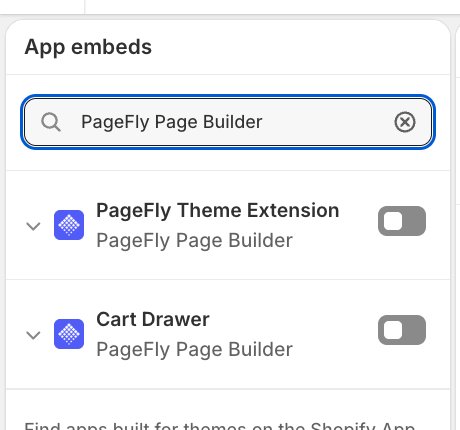
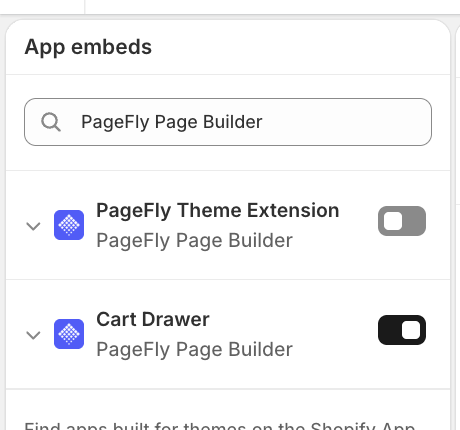
検索ボックスを使って一覧をPageFlyアプリに絞り込み、**Cart Drawer** という名前の項目を見つけます。
#### ステップ4:動作を確認する
ストアフロントに移動し、商品をカートに追加してカートを開きます。テーマ標準のドロワーではなく、PageFlyのドロワーが表示されるはずです。
{% hint style="warning" %}
**まだテーマ標準のカートドロワーが表示される場合:** PageFlyでドロワーに戻り、**Settings** タブを開いて **Force replace theme cart drawer** をオンにしてから、保存してドロワーを再公開してください。PageFlyの自動互換性リストにないテーマでは、この設定を明示的にオンにする必要があります。「ドロワーが表示されない」ケースの大半はこれで解決します。
{% endhint %}
#### 別のカートドロワーアプリがインストールされている場合
カートドロワーを管理する別のアプリ(Oxify、Upcartなど)がある場合、PageFlyはそれを検出してビルダー内に警告バナーを表示します。同じテーマで2つのカートドロワーアプリを同時に動かすと、カートが二重に表示されたり、崩れて見えたりすることがあります。PageFlyのドロワーを使う前に、もう一方のアプリのカートドロワー機能、またはそのテーマアプリ埋め込みを無効にしてください。
---
# Agent Instructions
This documentation is published with GitBook. GitBook is the documentation platform designed so that both humans and AI agents can read, navigate, and reason over technical content effectively. Learn more at gitbook.com.
## Querying This Documentation
If you need additional information that is not directly available in this page, you can query the documentation by asking a question.
Perform an HTTP GET request on the following URL with the `ask` and `goal` query parameters:
```
GET https://help.pagefly.io/pagefly-help-center-japanese/cart-drawer/turn-on-cart-drawer-in-your-theme.md?ask=&goal=
```
`ask` is the immediate question: it should be specific, self-contained, and written in natural language.
`goal` is what the user is ultimately trying to achieve, the reason they need the answer. Sharing it helps GitBook give you a better, more relevant answer. A goal is most helpful when it describes the outcome the user wants rather than restating the question. For example, with `ask=how do I create an API token`, a goal like `automate deployments from our CI pipeline` lets GitBook tailor the answer to that use case.
The response will contain a direct answer to the question and relevant excerpts and sources from the documentation.
Use this mechanism when the answer is not explicitly present in the current page, you need clarification or additional context, or you want to retrieve related documentation sections.