> For the complete documentation index, see [llms.txt](https://help.pagefly.io/llms.txt). Markdown versions of documentation pages are available by appending `.md` to page URLs; this page is available as [Markdown](https://help.pagefly.io/pagefly-help-center-japanese/cart-drawer/publish-and-manage-your-drawer.md).
# ドロワーを公開・管理する
#### ドロワーを公開する
ビルダー内で、右上の **Publish** をクリックします。
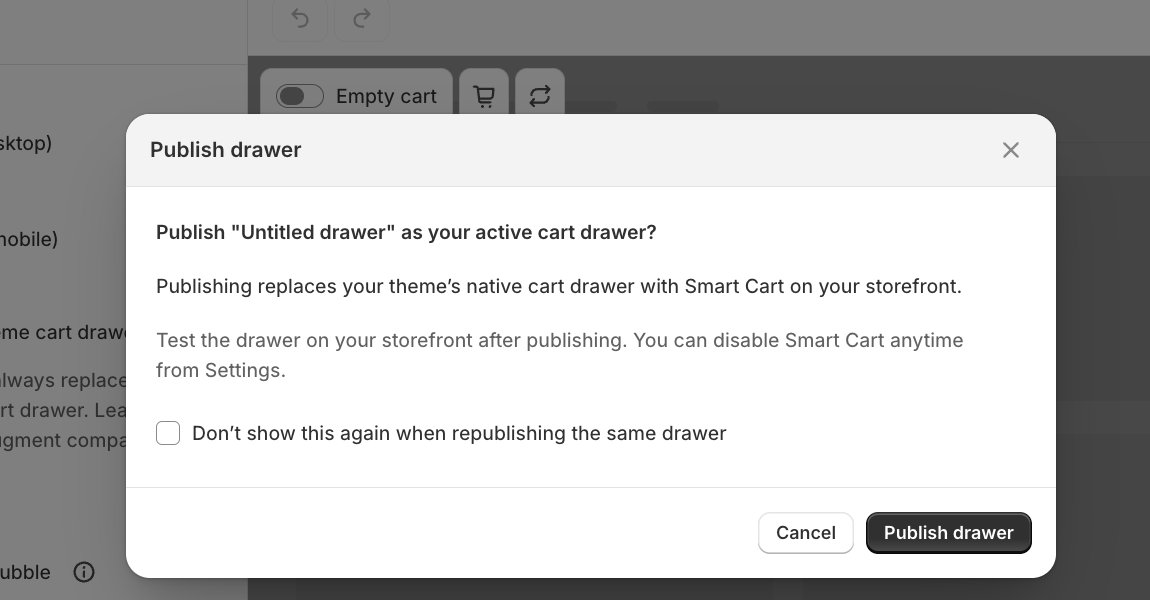
公開の確認モーダル
公開すると、次の2つが行われます。
* このドロワーが **アクティブな** カートドロワーとして設定されます。ドロワーが複数ある場合、アクティブにできるのは1つだけです。
* **Reward Ladder** または **Bundle Offers** を追加している場合、公開によってそれらの割引がチェックアウト時に自動で適用されるようになります。
{% hint style="info" %}
PageFlyで公開しただけでは、ドロワーはストアフロントに表示されません。テーマのアプリ埋め込みもオンにする必要があります。[テーマでカートドロワーをオンにする](https://help.pagefly.io/pagefly-help-center-japanese/cart-drawer/turn-on-cart-drawer-in-your-theme)をご覧ください。まだ行っていない場合は一度だけ行えば、今後公開するたびに繰り返す必要はありません。
{% endhint %}
同じドロワーを何度も調整していて毎回の確認が不要な場合は、**「Don't show this again when republishing the same drawer」** にチェックを入れてください。
#### ドロワーの一覧
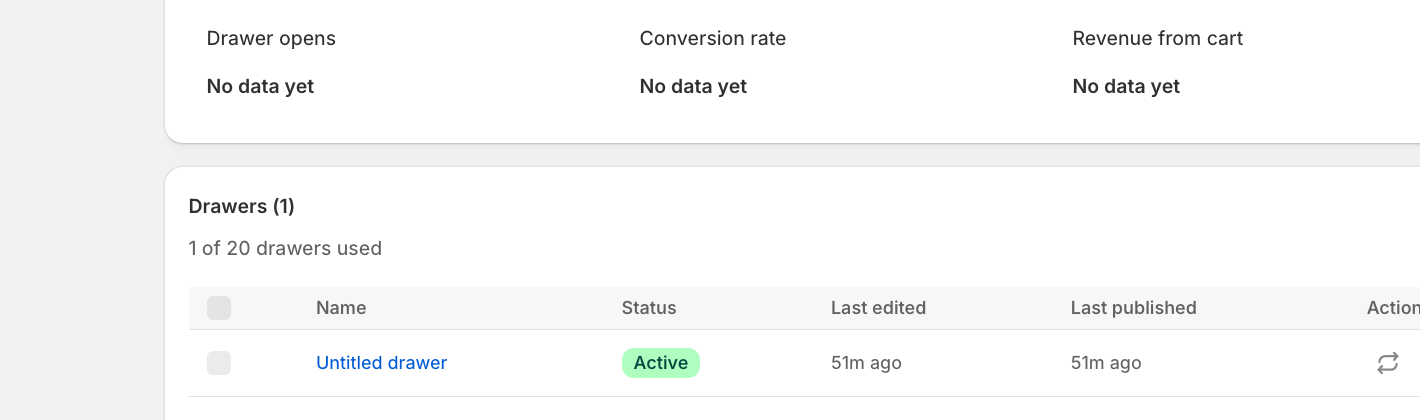
CRO Centerのホーム画面には、作成したすべてのドロワーが、ステータス、最終編集日時、最終公開日時とともに一覧表示されます。
アクティブなドロワーが表示されたドロワー一覧
アカウントごとに作成できるドロワーの数には上限があります(この画面に「X of 20 drawers used」と表示されます)。実際に上限に近づいていない限り、上限内に収めるために古い下書きを削除する必要はありません。
#### 既存のドロワーを管理する
ドロワー一覧の各行には、次の操作を含むアクションメニューがあります。
* **Republish:** ビルダーを開き直さずに、最新の保存済みの変更を公開します。
* **More actions:** ドロワーの名前変更、複製、削除を行います。
#### ドロワーの名前を変更する
新しいドロワーには最初「Untitled drawer」という名前が付きます。複数のドロワーを持つ場合(デフォルトのドロワーと季節限定のバリエーションなど)に見分けられるよう、ビルダーのパンくずリストか、ドロワー一覧のアクションメニューから名前を変更してください。
#### 公開を停止する
Smart Cartを完全にオフにしたい場合(チェックアウト時に適用されるReward LadderやBundle Offersの割引も含む)は、**Unpublish Smart Cart** を使います。アプリ埋め込みがオフのときにビルダーに表示されるバナー、またはドロワーのアクションメニューから利用できます。テーマのアプリ埋め込みだけをオフにすると、ドロワーは見えなくなりますが、バンドルや特典の割引はチェックアウト時に引き続き適用されます。公開を停止すると、それらも止まります。
---
# Agent Instructions
This documentation is published with GitBook. GitBook is the documentation platform designed so that both humans and AI agents can read, navigate, and reason over technical content effectively. Learn more at gitbook.com.
## Querying This Documentation
If you need additional information that is not directly available in this page, you can query the documentation by asking a question.
Perform an HTTP GET request on the following URL with the `ask` and `goal` query parameters:
```
GET https://help.pagefly.io/pagefly-help-center-japanese/cart-drawer/publish-and-manage-your-drawer.md?ask=&goal=
```
`ask` is the immediate question: it should be specific, self-contained, and written in natural language.
`goal` is what the user is ultimately trying to achieve, the reason they need the answer. Sharing it helps GitBook give you a better, more relevant answer. A goal is most helpful when it describes the outcome the user wants rather than restating the question. For example, with `ask=how do I create an API token`, a goal like `automate deployments from our CI pipeline` lets GitBook tailor the answer to that use case.
The response will contain a direct answer to the question and relevant excerpts and sources from the documentation.
Use this mechanism when the answer is not explicitly present in the current page, you need clarification or additional context, or you want to retrieve related documentation sections.