> For the complete documentation index, see [llms.txt](https://help.pagefly.io/llms.txt). Markdown versions of documentation pages are available by appending `.md` to page URLs; this page is available as [Markdown](https://help.pagefly.io/page-structure-and-elements/optimization/how-to-use-page-checkup-in-pagefly.md).
# How to use Page Checkup in PageFly
## Page Checkup
Page Checkup is your page's built-in health expert. With one click, it scans your page for conversion, SEO, and performance problems, gives you a single Health Score out of 100, and hands you a prioritized list of fixes. Most fixes can be applied automatically in a single click, so you can turn a page that quietly loses sales into one that is ready to convert, without leaving the editor.
### What Page Checkup actually looks at
Page Checkup runs two kinds of checks in a single pass.
**Structure checks.** These read the page itself: is there a hero section, does the hero have a headline and a call to action, is there exactly one H1 and is it near the top, do your headings skip levels, do images have alt text, is there social proof, is there an FAQ, is a price and a way to buy visible, are there real images or only placeholders.
**Visual checks.** Page Checkup also takes a picture of your page and has an AI look at it, the same way a first-time visitor would. This is what catches problems that the underlying code looks fine for: an offer that is not legible, a call to action that does not stand out, testimonials that read as fake, a wall of text with no visual hierarchy, a broken or stretched image.
Both sets of checks come back as one list and one score. You do not run them separately.
{% hint style="info" %}
Curerently, running a checkup is free and uses no AI credits, no matter how many times you run it. Credits are only used when you apply a fix.
{% endhint %}
### Before you start
* **Plan** - Page Checkup is available on every PageFly plan, including Free. There is no plan requirement.
* **Credits** - Applying a fix costs **5 AI credits**. Newly installed stores get **10 free trial credits** (enough for 2 fixes) valid for **7 days**; after that, fixes draw from your plan's AI credits. Optimizing images is the one fix that is always free.
* **Save your page first** - a checkup only runs on a saved page. If the page has never been saved, the Run button is disabled and you will see **"Save your page first, then run the checkup."**
* **Traffic data is optional** - the structural and visual checks work on any saved page, published or not. Issues about your add-to-cart rate, where visitors stop scrolling, and how you compare to other stores in your category only appear once the page is published and PageFly has tracked enough visits. Below 100 sessions in the last 30 days these results are labelled **Early signal**, and the industry comparison does not appear at all.
#### How to access Page Checkup
You can open Page Checkup in 4 places.
**Option 1 - From your PageFly Dashboard**
1. Open your PageFly Dashboard and find the **CRO tools** section.
2. Locate the **AI page checkup** card and click **Manage**.
3. Or scroll to the **Recent pages** table. The **CRO issue** column shows how many issues each page has. Click **Optimize** next to any page to open Page Checkup for that page.
**Option 2 - From the CRO Center**
1. From your Dashboard, click **Go to CRO center**.
2. Open the **Analyze** tab, find the **AI page checkup** card, and click **Manage**.
3. The **Page Checkup** page opens with a **Page performance** table listing your pages. Next to the page you want to check, click **Run checkup** (if it has not been checked yet), **Fix (count)** (if issues were found). The page opens in the editor with the Page Checkup panel.
**Option 3 - From the PageFly Editor**
1. Open your page in the editor.
2. Click the **CRO Center** icon in the right-hand toolbar. An amber dot on the icon means the page has at least one critical issue.
3. In the **Analyze** stage, open the **Page checkup** card.
**Option 4 - From the Dashboard scan card**
1. Open your PageFly Dashboard and find the **Your store today** section.
2. On the **Page Checkup - Is this page ready to sell?** card, open **Choose what to scan**.
3. Pick one:
* **My page** - one of your published PageFly pages.
* **Paste URL** - any public page. It does not have to be yours, so you can scan a competitor's page.
* **Image** - upload a screenshot, for a store that is password-protected or a page that is not live yet.
{% hint style="info" %}
**The card checks differently from the editor.** It looks at a picture of the page, the way a first-time visitor would. It does not run the structure checks described above - those moved to the AEO card, and are covered in [How to use AEO in PageFly](https://help.pagefly.io/page-structure-and-elements/optimization/how-to-use-aeo-in-pagefly).
Scanning one of your own pages is free. Scanning a pasted URL costs **5 AI credits**. A scan that fails is never charged.
{% endhint %}
### Running your first checkup
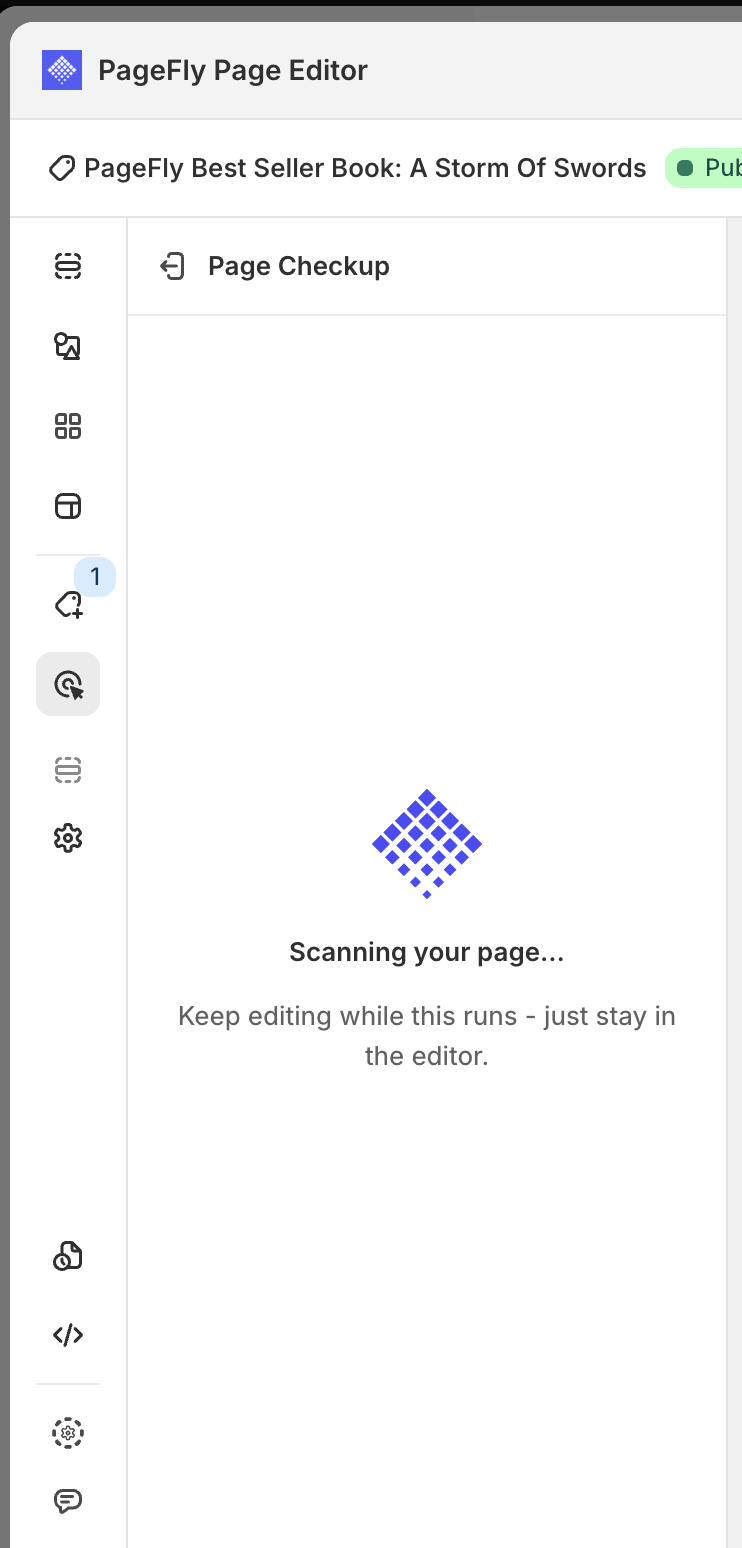
Click **Run checkup**. The scan keeps running if you close the panel and carry on working. It does not survive leaving the editor.
A few things that can happen during a scan:
* **Nothing changed since last time** - if your page is byte-for-byte the same as the last scan, you get the stored answer back instantly, with the note *"Your page hasn't changed since the last scan, so this is that same result."* No new AI work is done.
* **A scan is already running** - if the same page is being scanned in another tab or by a teammate, you will be asked to try again in a minute.
* **Something went wrong** - failed scans say so plainly and confirm **"You weren't charged."**
### Reading your Health Score
The score appears in a ring at the top of the panel.
| Score | Ring colour | What it means |
| ---------- | ----------- | ----------------------------------------------------------------------------- |
| **70-100** | Green | The page is in good shape. If any **Critical** items remain, fix those first. |
| **50-69** | Amber | Almost there. Clear the remaining issues to reach 70. |
| **0-49** | Red | Several issues are hurting conversions. Start with the critical ones. |
If sections on your page are still placeholders - default "This is your heading text" copy, a product block with no product picked, template filler images,... - Page Checkup caps the score and tells you this score is provisional while sections are still placeholder. Fill the real content in and re-run to get a true number.
#### What's working
Below the score, the **What's working** block lists what passed, not just what failed - things like *Value proposition clear above the fold*, *Primary CTA stands out*, *Price and a way to buy are visible*, *Reviews read as genuine*. Click any row to see the reviewer's own sentence about it.
### Applying a fix
There are four kinds of action, and they do not all cost the same.
**One-click fixes - 5 credits**. Some of these ask you something first:
* **Pick a template** - when a section is being added, you choose the layout from a grid.
* **Choose which heading becomes H1** - when several headings could be the page's main one, you pick.
**Image optimization - free.** The **Optimize images** button compresses your images and never uses credits. On the Free plan there is a lifetime allowance on how many images you can optimize; the card tells you how many you have left.
**Manual fixes - free.** **Add Heading**, **Add Button** and **Add Image** do not fix anything themselves. They open the Elements panel with the right element ready for you to place. No credits are used.
**Ask FlyMate - uses credits.** For findings without a one-click fix, the card offers **Ask FlyMate**, which hands the finding over to PageFly's AI assistant.
#### Applying is free - saving is what charges you
This is the part most merchants ask about.
When you click a fix, the change is applied to your canvas as a preview and you see **"Fix applied. Save to keep it."** **No credits have been taken yet.** The card's button changes to **Applied**, and a small marker appears on the canvas next to what changed.
Credits are taken **when you save the page**. Which means:
* Applied a fix, did not like it, pressed **Ctrl+Z** before saving - **you are not charged.**
* Applied a fix, saved - charged 5 credits, and the card is marked **Fixed**.
* Applied several fixes and saved once - each fix is charged.
While fixes are applied but unsaved, the header shows the score you are heading towards: **"64 -> 79 expected after you save"**.
**Step 4: Apply a fix**
Depending on the issue, you have one of two kinds of fixes:
* **One-click fixes** - Click **Fix** (or a labeled button such as **Add Hero section**, **Add FAQ section**, **Add Social proof**, or **Add Product showcase**). This uses **5 AI credits**, applies the change to your page, and marks the card **Resolved**.
* **Manual fixes** - For changes you make yourself, click **Add Heading**, **Add Button**, or **Add Image**. Page Checkup opens the Elements panel with the right element ready so you can place it.
#### Hiding a recommendation you handle elsewhere
If your reviews or FAQ come from another app, Page Checkup cannot see them in your page structure and will flag them as missing. Those two cards ask you directly:
* **"Do you have reviews from another app on this page?"**
* **"Do you have an FAQ widget from another app?"**
Click **Yes, hide this** and the card stops appearing for that page for **30 days**. Click **No thanks** to keep it. This only exists on those two findings - the rest of the list is not dismissible.
### Working with FlyMate
FlyMate is PageFly's AI assistant, and Page Checkup hands off to it in three places.
#### Ask FlyMate about a finding
On any card without a one-click fix, click **Ask FlyMate**.
FlyMate opens with the question already written for you, describing the finding, what was observed, and asking how to fix it. Read it, edit it if you want, and press send when you are ready - so a click on Ask FlyMate never costs you anything on its own. If you come back to the same finding later, the same conversation is waiting.
#### Build with FlyMate
On an empty page, **Build with FlyMate** opens the assistant so you can describe the page you want instead of starting from a blank canvas.
#### What FlyMate costs
FlyMate charges credits per exchange, based on how much work it actually did - a quick question costs very little, generating a full page costs more. Two rules make this predictable:
* **If FlyMate delivers nothing, you are not charged.** A failed section build, an abandoned page plan, a cancelled plan - all free.
* **A page plan is not charged until you approve it.** Planning, reviewing and revising the plan cost nothing until you click **Build it**.
Your remaining credits are always shown at the top of the FlyMate panel.
### Frequently asked questions
**Does running a checkup cost credits?**
No. Currently, scanning is free and you can re-run as often as you like. Credits are only used when you apply a fix, or when you talk to FlyMate.
**How much does a fix cost?**
5 AI credits per fix. Optimizing images is free. Manual fixes, which just open the Elements panel for you, are free. Newly installed stores get 10 free trial credits valid for 7 days.
**Which plan do I need?**
Any plan, including Free. Page Checkup is limited by credits, not by plan.
**Can I try a fix without paying for it?**
Yes. Applying a fix is a free preview. Credits are only taken when you save the page. Undo before saving and nothing is charged.
**Why is the Run checkup button disabled?**
The page has never been saved. Save it once and the button becomes available.
**What happens if I run out of credits?**
You will see **"Out of credits for Page Checkup"** with **Top up credits** and **Upgrade plan** buttons. Scanning and reading recommendations stay free.
**Why don't I see add-to-cart rate or the industry comparison?**
Those need traffic. Publish the page and give PageFly time to collect data - about 24 to 48 hours to start, and 100 sessions within 30 days before the industry comparison appears. Until then Page Checkup analyses structure and visuals only, which works on any saved page.
**Why does my score say it is provisional?**
Some sections are still placeholders - default heading text, filler images, or a product block with no product selected. Page Checkup holds the score back rather than giving you a flattering number for a page that is not finished. Fill in the real content and re-run.
**Why did my score go down after I fixed something?**
The score reflects everything currently on the page. Adding a new section can introduce new findings while resolving an old one. The line under the score tells you exactly which finding moved the number.
**Will Page Checkup change my page on its own?**
No. Nothing changes until you click a fix, and nothing is permanent until you save.
---
# Agent Instructions
This documentation is published with GitBook. GitBook is the documentation platform designed so that both humans and AI agents can read, navigate, and reason over technical content effectively. Learn more at gitbook.com.
## Querying This Documentation
If you need additional information that is not directly available in this page, you can query the documentation by asking a question.
Perform an HTTP GET request on the following URL with the `ask` and `goal` query parameters:
```
GET https://help.pagefly.io/page-structure-and-elements/optimization/how-to-use-page-checkup-in-pagefly.md?ask=&goal=
```
`ask` is the immediate question: it should be specific, self-contained, and written in natural language.
`goal` is what the user is ultimately trying to achieve, the reason they need the answer. Sharing it helps GitBook give you a better, more relevant answer. A goal is most helpful when it describes the outcome the user wants rather than restating the question. For example, with `ask=how do I create an API token`, a goal like `automate deployments from our CI pipeline` lets GitBook tailor the answer to that use case.
The response will contain a direct answer to the question and relevant excerpts and sources from the documentation.
Use this mechanism when the answer is not explicitly present in the current page, you need clarification or additional context, or you want to retrieve related documentation sections.