> For the complete documentation index, see [llms.txt](https://help.pagefly.io/llms.txt). Markdown versions of documentation pages are available by appending `.md` to page URLs; this page is available as [Markdown](https://help.pagefly.io/cart-drawer/turn-on-cart-drawer-in-your-theme.md).

# Turn on the cart drawer in your theme

Publishing a drawer inside PageFly is not enough on its own — Shopify requires you, the merchant, to turn on the Cart Drawer app embed in your theme editor. No app can do this step for you; it's a Shopify platform restriction, not a PageFly limitation.

{% hint style="warning" %}
If you only publish the drawer in PageFly and skip this step, your storefront cart will keep showing your theme's default drawer. This is the single most common reason a new drawer "doesn't show."
{% endhint %}

### Step 1: Open the app embeds panel

1. From your Shopify admin, go to **Online Store > Themes**.
2. On your active theme, click **Customize**.
3. In the theme editor, click the app embeds icon (the puzzle-piece icon) in the top toolbar to open **App embeds**.

### Step 2: Find and enable Cart Drawer

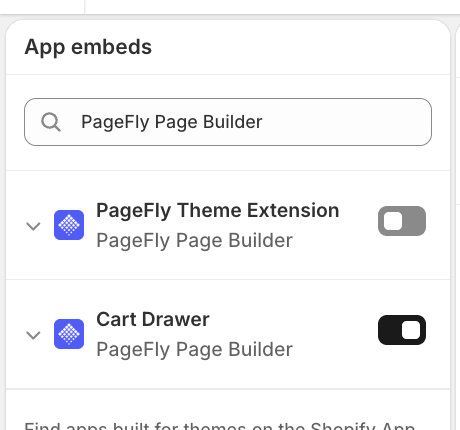
Use the search box to filter the list down to your PageFly app, then find the entry named **Cart Drawer**.

<figure><img src="/files/hbtEbn5l9a7j5Z8utrhQ" alt=""><figcaption><p>Cart Drawer app embed, filtered by app name, currently off</p></figcaption></figure>

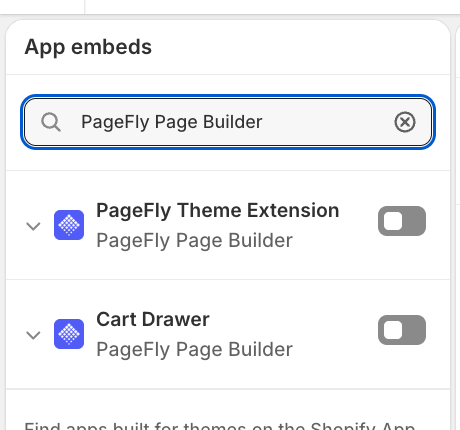
Turn the toggle on.

<figure><img src="/files/UjDUS6WG1dCMKOi2oRd3" alt=""><figcaption><p>Toggle switched on — not yet saved</p></figcaption></figure>

{% hint style="info" %}
**If you run more than one PageFly install** (for example a staging app alongside your live one), only enable the Cart Drawer embed that belongs to the app you're actually using to build your drawer. Enabling the wrong one won't show your drawer, and enabling both can cause conflicts.
{% endhint %}

### Step 3: Save

Click **Save** in the top bar of the theme editor. This is the step that actually activates the embed — the toggle alone does nothing until Shopify confirms the save.

<figure><img src="/files/njivdnQYxDQQYV0uzbzB" alt=""><figcaption><p>Saved: the toggle stays on and the Save button greys out (the "Changes saved" toast fades after a couple seconds)</p></figcaption></figure>

### Step 4: Confirm it worked

Go to your storefront, add a product to your cart, and open the cart. You should see your PageFly drawer, not your theme's default one.

{% hint style="warning" %}
**Still seeing your theme's default cart drawer?** Go back into your drawer in PageFly, open the **Settings** tab, and turn on **Force replace theme cart drawer**, then save and republish the drawer. Some themes aren't on PageFly's automatic compatibility list and need this setting turned on explicitly. This resolves the vast majority of "my drawer isn't showing" cases.
{% endhint %}

### If another cart-drawer app is installed

If you have another app that also manages a cart drawer (for example Oxify, Upcart, or similar), PageFly detects this and shows a warning banner in the builder. Running two cart-drawer apps at once on the same theme can cause a duplicated or broken-looking cart. Disable the other app's cart drawer feature, or its theme app embed, before relying on PageFly's drawer.


---

# Agent Instructions
This documentation is published with GitBook. GitBook is the documentation platform designed so that both humans and AI agents can read, navigate, and reason over technical content effectively. Learn more at gitbook.com.

## Querying This Documentation
If you need additional information that is not directly available in this page, you can query the documentation dynamically by asking a question.

Perform an HTTP GET request on the current page URL with the `ask` query parameter, and the optional `goal` query parameter:

```
GET https://help.pagefly.io/cart-drawer/turn-on-cart-drawer-in-your-theme.md?ask=<question>&goal=<endgoal>
```

`ask` is the immediate question: it should be specific, self-contained, and written in natural language.
`goal` is optional and describes the broader end goal you are ultimately trying to accomplish on behalf of the user. GitBook uses it to tailor the answer towards what is most useful for that goal.

The response will contain a direct answer to the question and relevant excerpts and sources from the documentation.

Use this mechanism when the answer is not explicitly present in the current page, you need clarification or additional context, or you want to retrieve related documentation sections.