> For the complete documentation index, see [llms.txt](https://help.pagefly.io/llms.txt). Markdown versions of documentation pages are available by appending `.md` to page URLs; this page is available as [Markdown](https://help.pagefly.io/cart-drawer/publish-and-manage-your-drawer.md).
# Publish and manage your drawer
### Publish a drawer
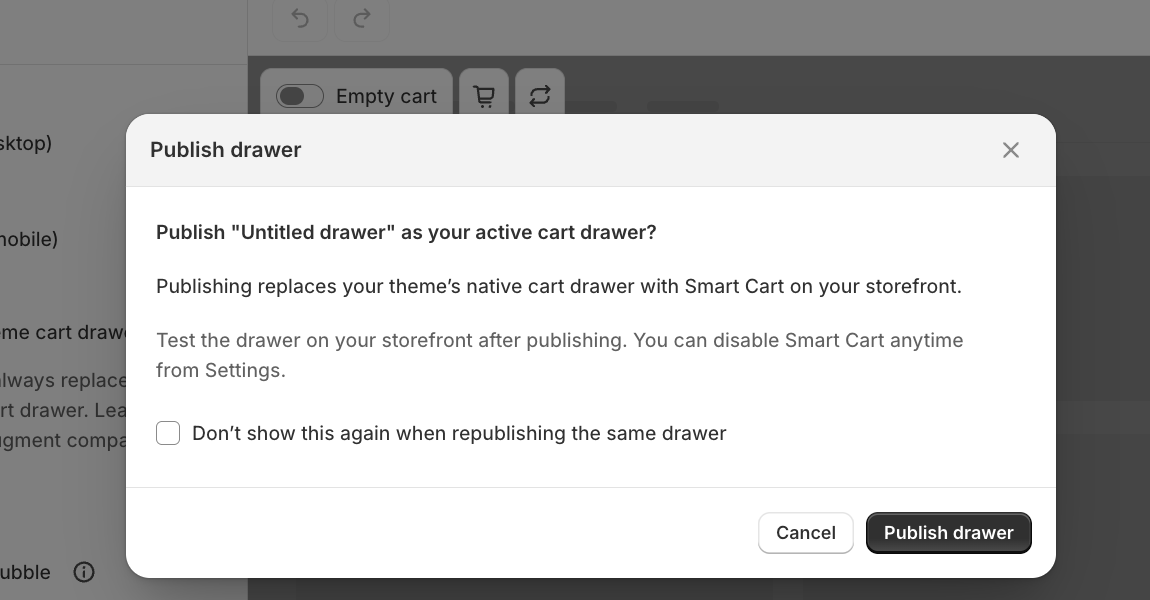
From inside the builder, click **Publish** in the top-right corner.
Publish confirmation modal
Publishing does two things:
* It marks this drawer as your **active** cart drawer — if you have more than one drawer, only one can be active at a time.
* If you've added **Reward Ladder** or **Bundle Offers**, publishing is also what makes their discounts start applying automatically at checkout.
{% hint style="info" %}
Publishing in PageFly does not, by itself, make the drawer appear on your storefront. You also need the theme app embed turned on — see [Turn on the cart drawer in your theme](/cart-drawer/turn-on-cart-drawer-in-your-theme.md). If you haven't done that yet, do it once; you won't need to repeat it for future publishes.
{% endhint %}
Check **"Don't show this again when republishing the same drawer"** if you're iterating on the same drawer and don't want the confirmation each time.
### The drawer list
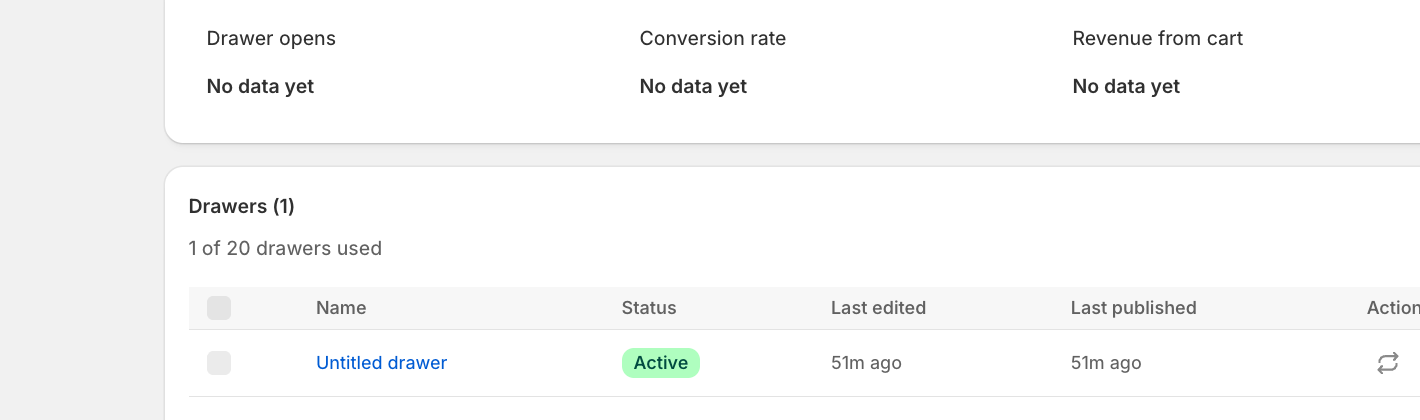
Your CRO Center home screen lists every drawer you've created, with its status, when it was last edited, and when it was last published.
Drawer list showing an Active drawer
Each account has a limit on how many drawers you can create (shown as "X of 20 drawers used" on this screen). You don't need to delete old drafts to stay under the limit unless you're actually approaching it.
### Manage an existing drawer
From the drawer list, each row has an actions menu with:
* **Republish** — pushes your latest saved changes live without reopening the full builder.
* **More actions** — rename, duplicate, or delete the drawer.
### Rename a drawer
New drawers start out named "Untitled drawer." Rename it from the builder's breadcrumb or the drawer list's actions menu so you can tell drawers apart if you keep more than one (for example a seasonal variant next to your default).
### Unpublishing
If you want to fully turn off Smart Cart — including any Reward Ladder or Bundle Offers discounts it applies at checkout — use **Unpublish Smart Cart**, available from the banner in the builder when the app embed is off, or from the drawer's actions menu. Turning off just the theme app embed hides the drawer visually but leaves any bundle/reward discounts still applying at checkout; unpublishing stops those too.
---
# Agent Instructions
This documentation is published with GitBook. GitBook is the documentation platform designed so that both humans and AI agents can read, navigate, and reason over technical content effectively. Learn more at gitbook.com.
## Querying This Documentation
If you need additional information that is not directly available in this page, you can query the documentation by asking a question.
Perform an HTTP GET request on the following URL with the `ask` and `goal` query parameters:
```
GET https://help.pagefly.io/cart-drawer/publish-and-manage-your-drawer.md?ask=&goal=
```
`ask` is the immediate question: it should be specific, self-contained, and written in natural language.
`goal` is what the user is ultimately trying to achieve, the reason they need the answer. Sharing it helps GitBook give you a better, more relevant answer. A goal is most helpful when it describes the outcome the user wants rather than restating the question. For example, with `ask=how do I create an API token`, a goal like `automate deployments from our CI pipeline` lets GitBook tailor the answer to that use case.
The response will contain a direct answer to the question and relevant excerpts and sources from the documentation.
Use this mechanism when the answer is not explicitly present in the current page, you need clarification or additional context, or you want to retrieve related documentation sections.